IdeaVaultHQ Template School
How To Create A Google Sheets Budget Planner Template For Etsy In 2026
This tutorial is for beginners who want to build a Google Sheets budget planner template that feels simple, useful, and easy to explain on Etsy. The path is practical: find current demand, build the sheet, make the customer instructions, create the listing images, then publish a listing that tells buyers exactly what they are getting.
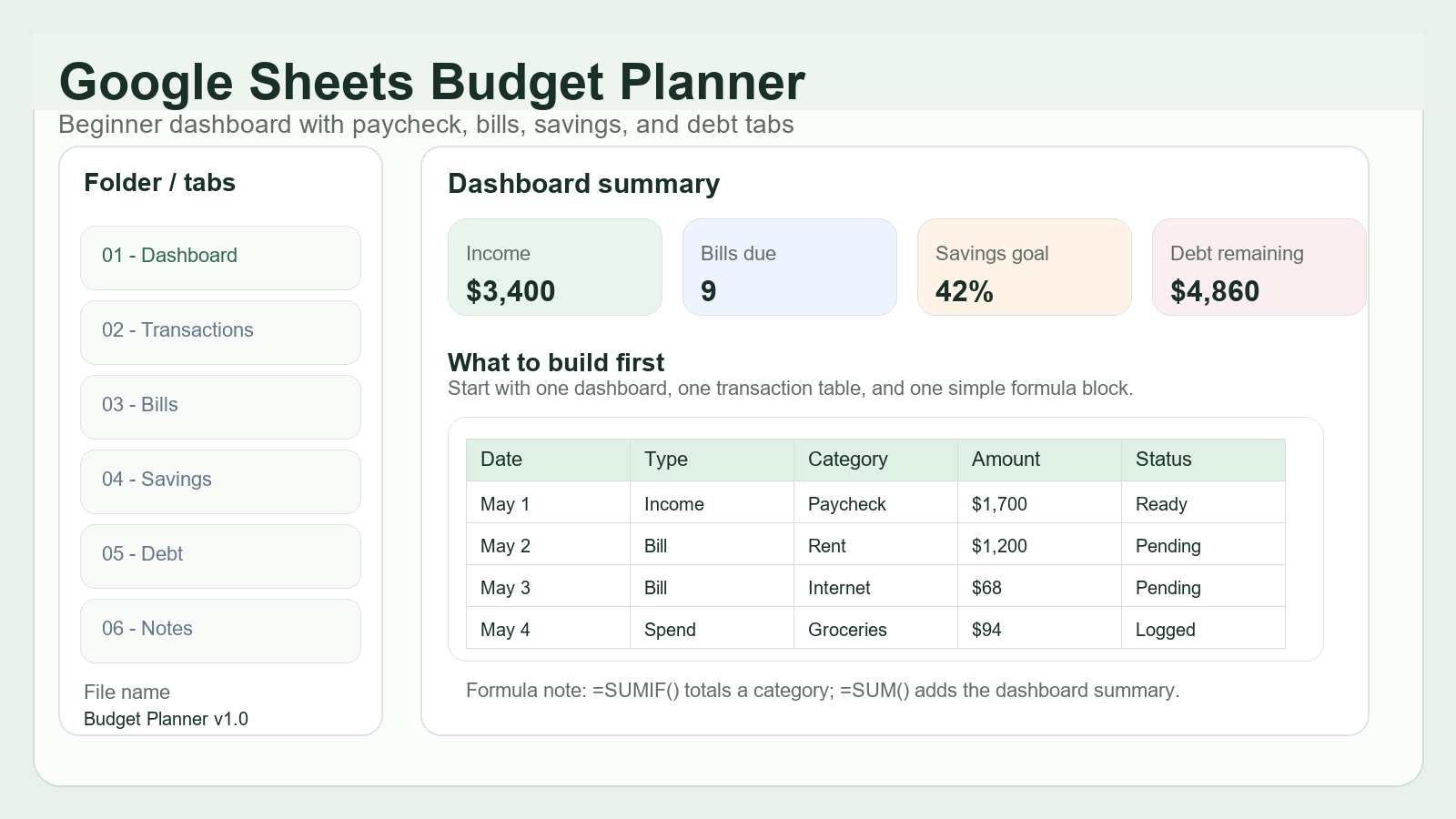
Quick answer: To create a Google Sheets budget planner template for Etsy, start by checking how buyers search for budget planners and spreadsheet templates, choose one simple buyer problem, build a clean sheet with a dashboard and a few supporting tabs, add basic formulas, write a one-page instruction PDF, create screenshots that show the value clearly, and publish the listing as a digital download. The product should feel beginner-friendly, not like accounting software.
Workflow Map
Step 1: Read Demand Before You Decide The Exact Product
Budget planner and spreadsheet templates are not abstract ideas. Etsy search results already show a real market for them. In current Etsy market pages, budget planner and budget tracker listings include Google Sheets and spreadsheet versions with sizable review counts, which is a useful demand signal for beginners because it shows buyers already accept this format. Current Reddit discussions also keep circling around Etsy SEO, spreadsheet templates, and how sellers track money, which suggests the topic is not only searchable but still actively discussed by creators and buyers.
That does not mean you should copy the most reviewed listing. It means you should choose a narrower beginner-friendly angle. A broad budget planner is crowded. A better angle is a specific person with a specific budgeting habit. Examples: people paid biweekly, people who want a no-stress money reset, beginners who keep forgetting subscriptions, or Etsy sellers who want a simple profit tracker they can actually maintain.
Write the buyer in one sentence before you open Google Sheets. Example: “This template is for beginners who want a simple monthly money system with fewer tabs than a full finance app.” That sentence helps you make layout decisions later. If a tab, formula, or label does not help that buyer, it is probably extra.
Step 2: Create A Small Project Folder And Name Everything Clearly
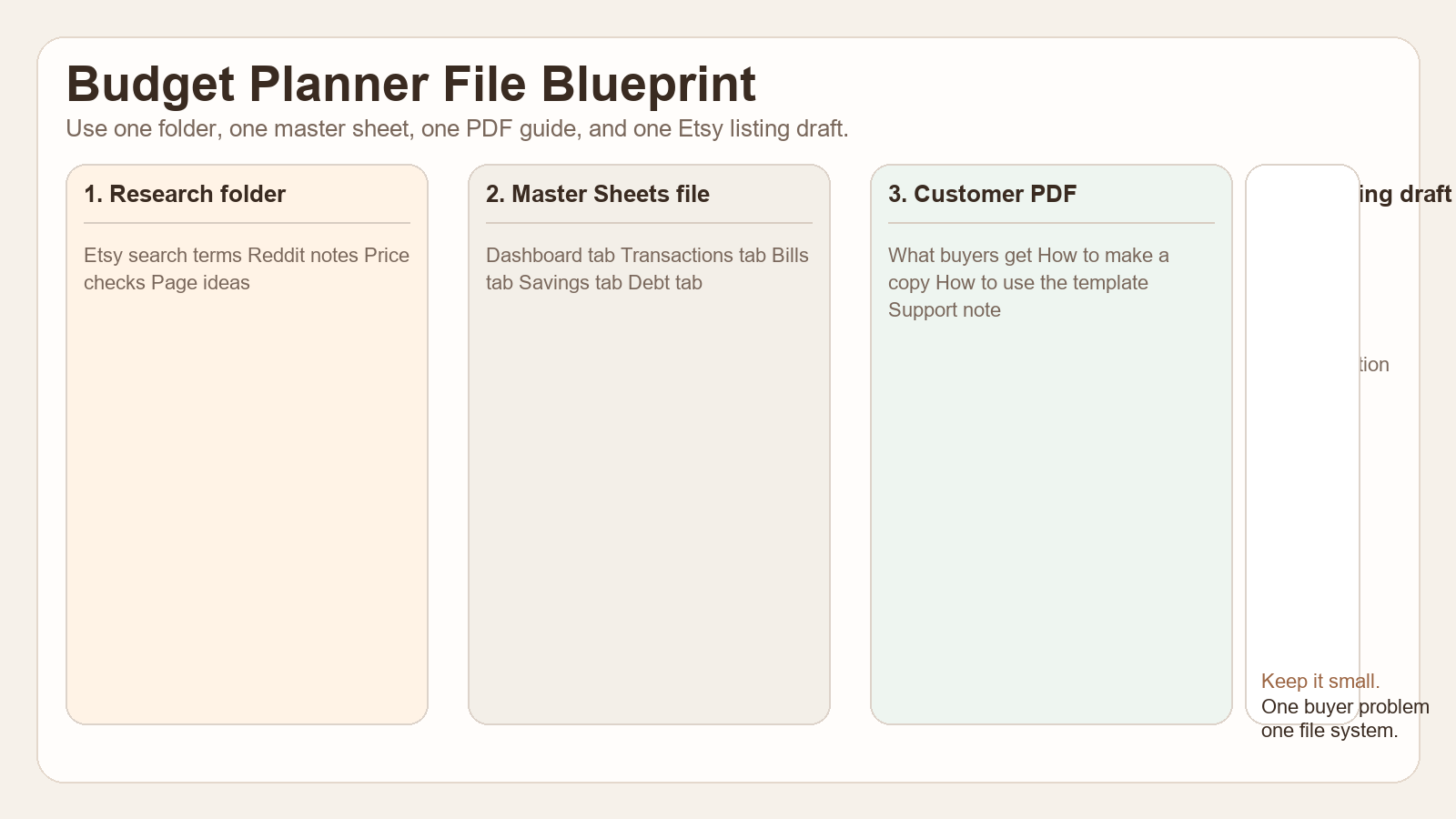
Before you design anything, make one folder called Google Sheets Budget Planner Etsy Product. Inside it, add five subfolders: Research, Master Sheet, Customer PDF, Listing Images, and Draft Copy. That structure keeps the project from turning into a pile of downloads, screenshots, and half-finished links.
Inside the research folder, keep a short notes file with three headings: buyer problem, search phrases, and listing lessons. If you see phrases like “budget planner google sheet,” “monthly expense tracker,” or “paycheck budget spreadsheet,” write them down. Do not copy full listings. Just capture the language buyers actually use and the features they seem to expect.
Inside Draft Copy, create a simple text file with your working title, description outline, tag ideas, and a one-sentence promise. This matters because a useful product launch depends on consistency. The title, images, and sheet tabs should all point to the same buyer problem.
Step 3: Build The Google Sheets Structure Before You Add Styling
Open Google Sheets and create a new spreadsheet. Name it something plain, such as Budget Planner Template v1. Then create these tabs: Dashboard, Transactions, Bills, Savings, Debt, and Notes. That is enough for version one. Beginners often make a planner too large because they want to include every useful idea they have. Resist that. A small sheet that works is better than a giant sheet nobody finishes.
Start with the Dashboard tab. Make a top summary that shows income, bills due, savings goal, and debt remaining. Keep the labels human-friendly. The buyer should not feel like they need accounting training to use the template. Under the summary, add a simple table for the current month’s transactions. Use plain columns like date, type, category, amount, and status. Keep the first version readable on a laptop and on a phone.
Then create the supporting tabs. The Transactions tab can hold every entry. The Bills tab can hold recurring payments and due dates. The Savings tab can track goals and progress. The Debt tab can track balances and target payoff dates. The Notes tab can explain how the system works. Each tab should have one job. If a tab tries to solve five different problems, it will feel harder to use and harder to sell.
Step 4: Add Simple Formulas That Help Without Making The Sheet Fragile
Use formulas that are easy to explain. A beginner budget planner does not need an advanced automation stack. Start with a totals row, category sums, and a remaining balance calculation. On the Dashboard, sum the income and spending rows, then subtract spending from income. In the Bills tab, use due dates and status labels. In Savings, calculate percentage progress against the goal. In Debt, show a remaining balance and a rough payoff target.
Google Sheets’ own help documentation is enough to teach the basics: you can use formulas by typing an equals sign and selecting from suggestions, and the template gallery makes it clear that people can start from a copy instead of a blank file. That matters because your product should feel like a guided copy-and-edit workflow, not a custom software install.
Do not overcomplicate the formulas. If a formula breaks easily, the buyer will blame the product, not their own setup. Test the sheet by entering a few fake numbers. Make sure the summary updates. Make sure the percentage progress cell does not display nonsense when a tab is empty. If it does, simplify the logic.
Step 5: Make The Sheet Look Like A Product, Not A Spreadsheet Dump
Styling still matters. Use one accent color, one neutral color, and white space. Keep the header row readable. Use borders to separate sections. Give the dashboard enough breathing room so the most important numbers stand out. The point is not to make the sheet flashy. The point is to make it understandable at a glance.
Pick a visual direction and stick to it. For this post, a green-and-cream palette works well because it feels calm and money-focused. A good product page should look like a useful system, not a generic office document. That is especially true on Etsy, where buyers scroll quickly and make judgments from thumbnails and the first image before reading the description.
Put your best screenshot-style visual first in the listing images, then use the next images to explain what the buyer gets. If you only show the finished dashboard and hide the rest, people may not understand the value. If you show every tab too early, the listing feels busy. Show the promise first, then the details.
Step 6: Create A Clean Customer PDF That Explains The Template
Most buyers do not want to think about spreadsheet setup. They want a simple download that works. Create a one-page or two-page PDF that says exactly what the buyer gets, how to make a copy, what tabs exist, and how to use the template the first time. Put the template link near the top. Do not hide it at the bottom of the page. Buyers should not need to scroll hunting for the first step.
Use plain instructions. Example: “Open the Google Sheets link. Click File. Choose Make a copy. Rename your copy. Start entering your numbers in the Transactions tab.” That is the level of detail beginners need. If you want to support printable users too, add a note about downloading the sheet as PDF after they are done editing.
Include one warning in the PDF: this is a digital product, and the buyer should make their own copy before editing. That protects your original file and reduces confusion. If you use any formulas that rely on exact cell placement, say so plainly. People trust a template more when it explains where the edges are.
Step 7: Write The Etsy Listing Like A Buyer Search, Not A Brand Slogan
Your listing title should sound like something a buyer might search. A strong working title could be: Google Sheets Budget Planner Template, Monthly Expense Tracker, Paycheck Budget Spreadsheet, Debt Payoff and Savings Tracker, Digital Download. That is not fancy, but it is clear. Etsy can match it to relevant searches, and buyers can tell what they are looking at.
Then build your tags around the same logic. Use tags that reflect format, use case, and buyer need. Examples include Google Sheets budget planner, budget tracker spreadsheet, expense tracker template, paycheck budget, savings tracker, debt payoff, monthly budget, digital download, finance planner, spreadsheet template, and Etsy budget planner. Do not stuff in unrelated traffic terms. Relevance matters more than keyword noise.
In the description, answer the obvious questions first: What is it? Who is it for? What files are included? How does the buyer get started? When is this useful? The first 160 characters should describe the problem and the result, not a welcome message. If someone clicks from search, they should immediately know they are in the right place.
Step 8: Add Images That Look Like Real Work Screens
The visual standard for this tutorial is simple: avoid abstract AI-looking cards. Real tutorials feel like browser windows, editor screens, export checklists, file folders, and listing draft boards. A buyer should be able to picture themselves using the file, not just admiring the design. That means contained borders, readable text, and clear function.
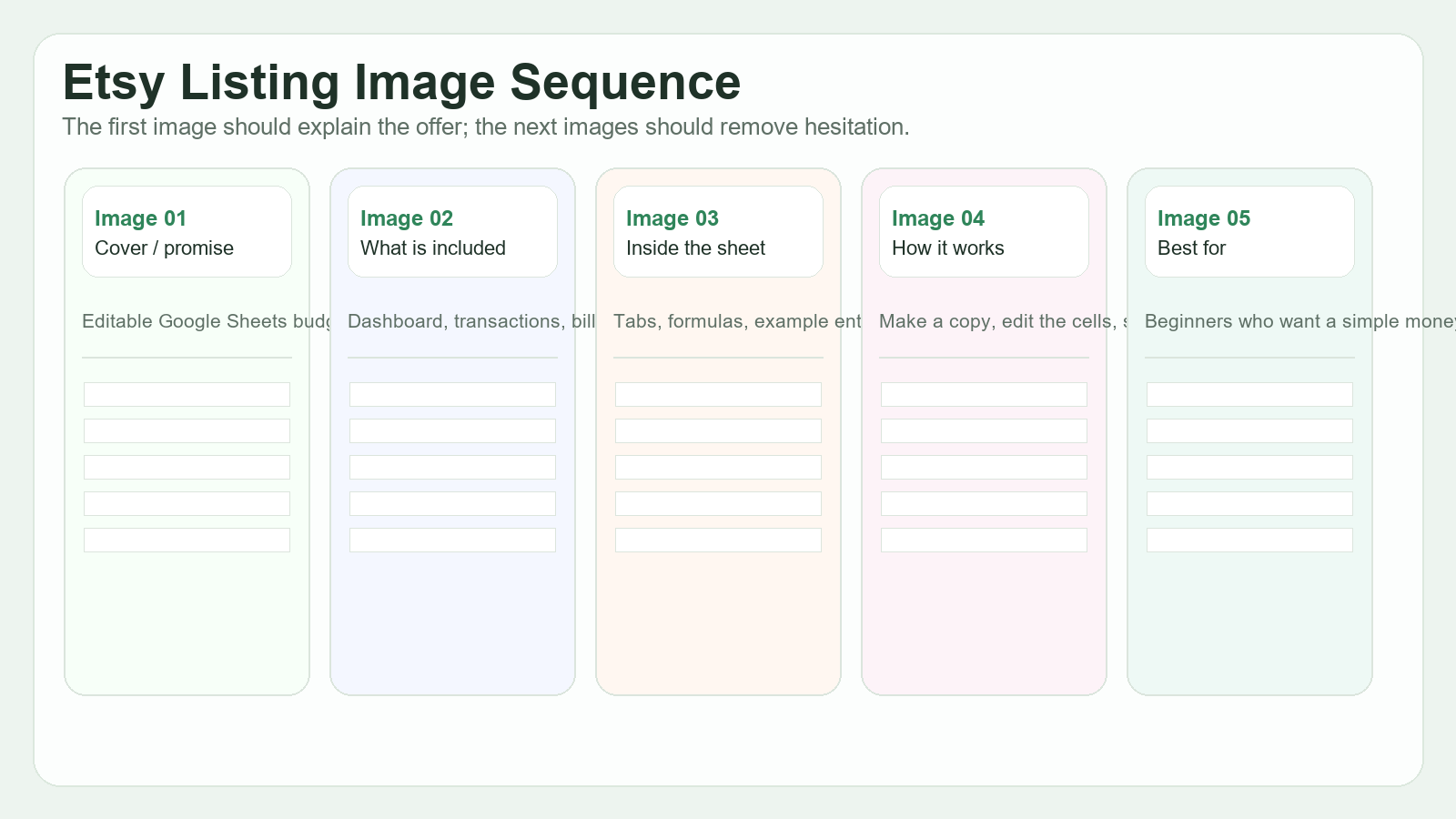
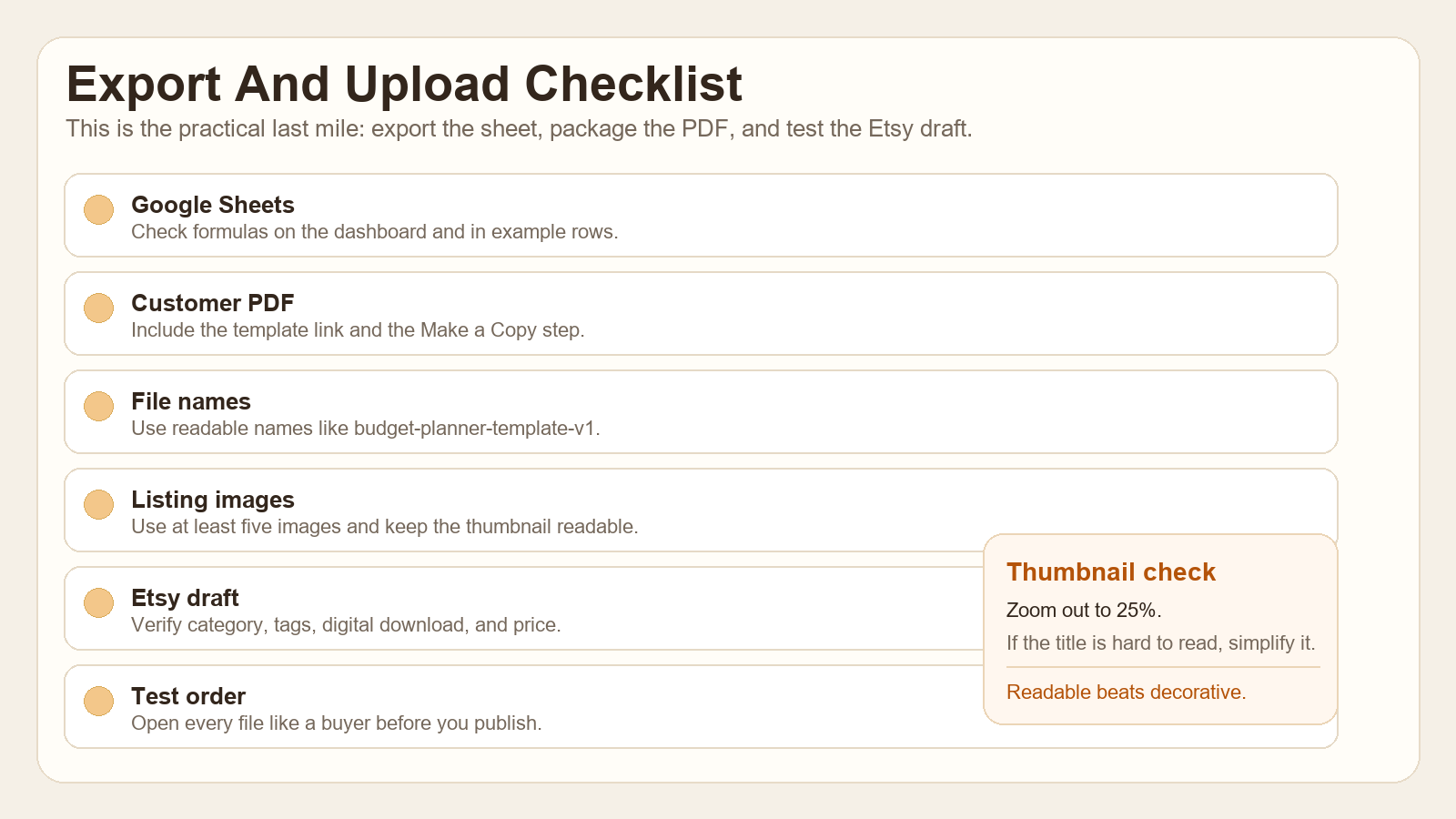
Make at least five listing images. The first image should explain what the product is. The second should show what is included. The third should show the inside of the sheet. The fourth should explain how the template works. The fifth should reinforce the buyer type or problem. If you can add a sixth image with an FAQ or formula note, that is even better.
When the images are done, shrink them mentally to mobile size. If the title disappears at thumbnail scale, simplify it. If the text block gets too dense, split it across two images. Etsy listing images are part of the product explanation, not separate decoration.
Step 9: Use A Current Demand Signal To Shape The Angle, Not Just The Keywords
One reason this topic is stronger than a generic “budget planner” post is that the current market already shows a spreadsheet-friendly expectation. Etsy market pages currently surface budget planner Google Sheet and budget spreadsheet listings, and Reddit conversations keep surfacing spreadsheet templates, budget tracking, Etsy SEO, and the idea that buyers care deeply about clarity. That means a clear Google Sheets tutorial is doing more than chasing keywords. It is answering an actual buying pattern.
Use that signal to shape the product angle. If the market is full of big, crowded finance systems, your version can be small and beginner-first. If the market is full of prettier but confusing products, your version can be simpler and more instructional. If the market seems to expect a complicated spreadsheet, your version can become the friendly one.
That is the real advantage of current research. It does not tell you what to copy. It tells you what buyers already understand, what they seem to compare, and where your product can be more helpful.
Step 10: Publish As A Digital Download And Test Like A Buyer
When you upload the product in Etsy, choose the digital product path and attach the customer PDF as the file the buyer receives. Add the image set in order. Read the description one more time. Check the category choice, tags, and preview text. Then click through the listing like a stranger. Does the first image make sense? Does the title match the file? Does the description explain the download clearly? Can the buyer tell they need to make a copy of the sheet?
After publishing, do not change everything immediately. Give the listing a little time to collect behavior. If people click but do not favorite, your thumbnail or promise may be too generic. If people favorite but do not buy, the images or price may need work. If nobody clicks, the title and keyword match probably need tightening.
Make one change at a time. Improve the thumbnail. Then wait. Improve the title. Then wait. Add a clearer “what is included” image. Then wait. That approach gives you usable feedback instead of a pile of random edits.
Step 11: Treat The First Version As A Learning Asset
The first version of a template is not the final version. It is the proof that you can research a buyer need, turn it into a file, and explain it clearly enough for a stranger to buy. Once the first product exists, your next versions get easier. You can make a weekly budget version, a teacher budget version, a debt payoff version, or an Etsy seller profit tracker without rebuilding the whole system.
If the first template works, reuse the structure. Change the angle, not the entire process. That is how a small tutorial turns into a repeatable product line. It is also how a beginner stops feeling like every launch is starting from zero.
Beginner Checklist
- Pick one buyer group before opening Google Sheets.
- Create a small folder structure for research, files, images, and copy.
- Build one dashboard and a few supporting tabs first.
- Test the formulas with sample numbers before you export anything.
- Make a customer PDF with the Make a Copy step at the top.
- Create five or more Etsy listing images with a clear sequence.
- Use a buyer-style title and tags, not a brand slogan.
- Publish, then improve one element at a time after launch.
Copy-Paste ChatGPT Prompt
Use this prompt after you have written your own research notes. It helps turn the notes into a clean product plan without copying another listing.
You are helping me plan an original Etsy digital product.

Product idea: Google Sheets budget planner template for beginners.
Audience: people who want a simple monthly money system, not a complicated finance app.

Using my notes below, help me:
1. Narrow the buyer problem into one clear angle.
2. Suggest 6 tabs or pages for version one.
3. Draft 5 Etsy listing image ideas.
4. Write a simple PDF instruction outline.
5. Suggest 13 Etsy tags.
6. Write a short SEO-friendly title.

Rules:
- Do not copy existing listings.
- Do not promise income or results.
- Keep the layout beginner-friendly.
- Make the wording plain and specific.
- Favor clarity over clever branding.
Current Sources Checked For This Tutorial
Continue Learning On IdeaVaultHQ
This guide is part of the IdeaVaultHQ Template School path. Use the links below to keep moving instead of stopping on one article.
Success Diagram For This Idea
This is the practical path from reading How To Create A Google Sheets Budget Planner Template For Etsy In 2026 to turning the idea into a small testable offer.
Leave a Reply