IdeaVaultHQ Template School
How To Make Etsy Listing Images in Canva for Digital Products
A practical tutorial for turning Canva into an Etsy listing-image system that explains a digital product fast, looks realistic on mobile, and helps buyers understand the file before they buy.
Quick answer: Make one clear promise, turn it into a five-image sequence, use screenshot-style visuals, and test every card at thumbnail size. If the images clearly explain the product, they are doing the job Etsy buyers need them to do.
Workflow
Etsy Listing Image Workflow
Quick answer: If you want Etsy listing images that convert buyers, start with one plain promise, not a decorative mood board. Decide what the shopper has to understand in three seconds, map the five-image sequence, then build each card in Canva so the listing explains itself even when the description is ignored. That is the current job of your images. They are not just branding. They are the product explanation, the trust builder, and the mobile billboard.
Recent public seller discussion is a useful demand signal here. In one Etsy seller thread, people kept pointing out that buyers miss whether a product is an editable Canva file or a printable PDF. In another thread, sellers said they had to drive traffic themselves and use strong visuals because Etsy search and Pinterest behavior reward clear, clickable images. That is an inference from the discussions, not a formal market study, but it is enough to justify a practical tutorial on listing images.
This tutorial is for beginners who are making digital products, templates, planners, checklists, or simple guide files and need the Etsy images to do more of the selling. You do not need advanced design skills. You do need a repeatable image plan. If you can organize one idea into five screenshots, you can make a listing that feels clearer than the average cluttered mockup. The goal is to make the buyer think, “I understand what this is and why I want it,” before they ever scroll to the description.
What A Good Listing Image Has To Do
A strong Etsy listing image has one job: reduce uncertainty. Buyers are not opening your listing to admire your font choices. They are trying to answer basic questions. What is it? Is it editable or printable? What files do I get? Does it work for my situation? Is this the right level of simplicity or detail? Every image should answer one of those questions. If an image answers nothing, it is decoration, not conversion.
This matters more for digital products than for physical products because the buyer cannot hold the item. They cannot inspect paper quality or see a real-world scale reference. The image has to carry more of the explanation. Etsy also makes the thumbnail do a lot of work, and Canva’s own Etsy size guidance points to listing images that are large enough to stay crisp. In practice, that means your design has to be readable when it is compressed into a tiny square on mobile, not just when you admire it on your laptop.
A good image set is specific. If you sell a budget planner, show pages. If you sell a Canva template, show the editable screen. If you sell an Etsy SEO sheet, show the sheet tabs and a sample keyword column. If you sell an AI prompt pack, show a few prompt cards and one output example. Specifics tell the buyer that you understand the real workflow, which creates trust before the purchase.
Choose The Buyer Question Before You Open Canva
Begin by writing one sentence: what must the buyer understand immediately? For a template listing, the answer might be “This is an editable Canva template, not a finished PDF.” For a digital planner, it might be “This planner includes monthly, weekly, and goal pages.” For a spreadsheet, it might be “This file works in Google Sheets and already includes formulas.” That sentence becomes the axis of the whole design.
If you skip this step, you will start making pretty cards and then realize halfway through that none of them explain the actual product. Beginners often build from aesthetics first because Canva makes that easy. But aesthetics are not the same thing as clarity. A buyer cannot trust a beautiful image if they still do not know what they are buying. Your first task is therefore not design. It is definition.
Write a tiny brief in plain language. Example: “Editable Canva listing image set for a budget planner that targets beginners who want less clutter and more explanation.” Or: “Square Etsy gallery images for a digital product that should look like a clean tutorial screen, not a lifestyle collage.” That brief keeps every design choice honest. If a visual does not help the buyer understand the file, remove it. If a phrase sounds clever but vague, rewrite it into something simpler.
Map The Five-Image Sequence First
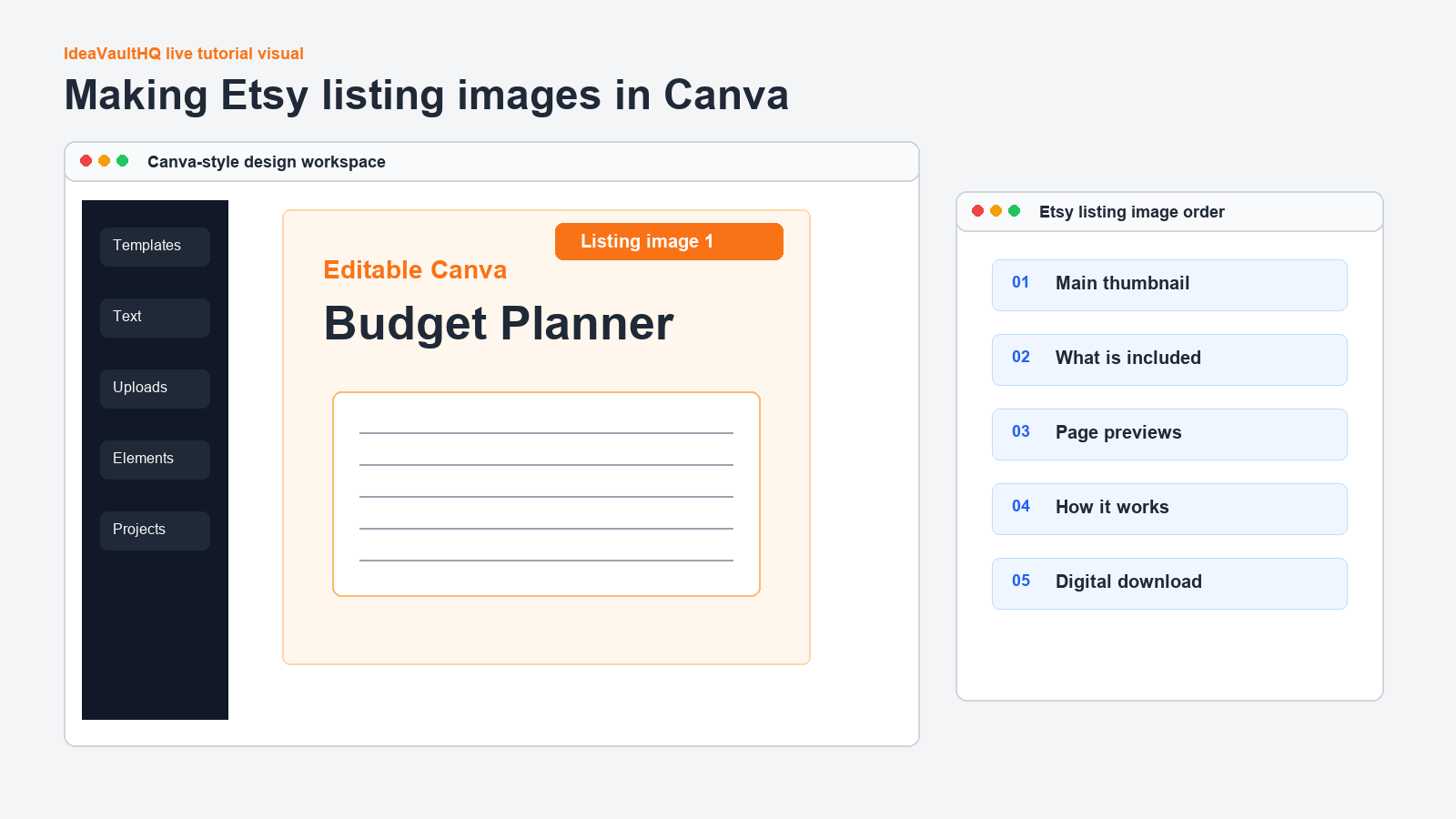
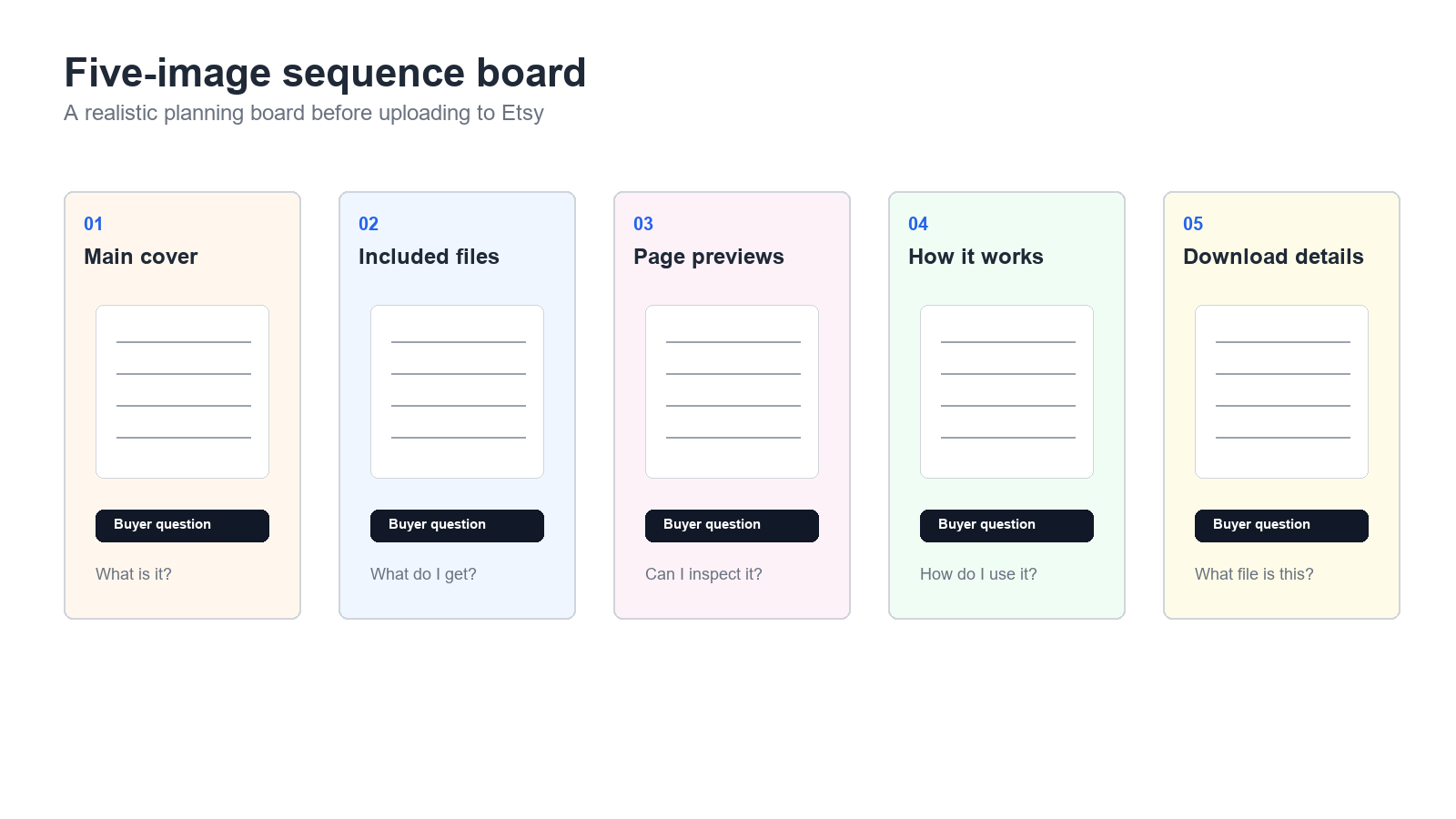
Do not design image one without knowing image five. A five-image sequence gives you a structure that prevents random filler. A beginner-friendly sequence usually works like this: image one says what the product is, image two says what is included, image three shows the actual file or page preview, image four shows how it works, and image five answers who it is for or why it is better than a generic alternative. That sequence is simple, repeatable, and easy to adapt across different digital products.
The best part of the sequence is that each image has a different job. If image one tries to explain everything, the card becomes cluttered. If image two is just another cover with a different color, the set feels repetitive. A sequence creates momentum. It gives the buyer a visual path from “What is this?” to “How do I use it?” to “Why should I trust it?” That path is what most weak listings lack.
Before touching Canva, sketch the five cards on paper or in Notes. Write one headline for each card. Write one supporting line. Write one visual idea. That tiny planning step is usually enough to stop over-designing later. It also makes the tutorial easier to repeat because the system can be reused for any product family: budget planners, Canva templates, Etsy SEO sheets, product research trackers, and AI prompt packs.
Build Image One: The Clear Promise
Image one needs to do the heaviest lifting. It should tell the buyer what the product is and what kind of result they can expect. Keep the headline short. For example, “Editable Canva Budget Planner Template” is better than a poetic phrase with no obvious meaning. If the product is a digital download, say that. If it is a printable PDF, say that. If it includes a spreadsheet, say that. Clarity beats cleverness here every time.
In Canva, start with a square canvas and build a simple frame: headline, subtitle, product mockup or screenshot, and one trust line. The trust line can be something like “Instant digital download” or “Made for beginners.” Do not add six icons, ten stickers, or a fake phone screen unless those elements actually help the buyer understand the product. The more a listing image feels like an ad from another universe, the less it feels like a real product explanation.
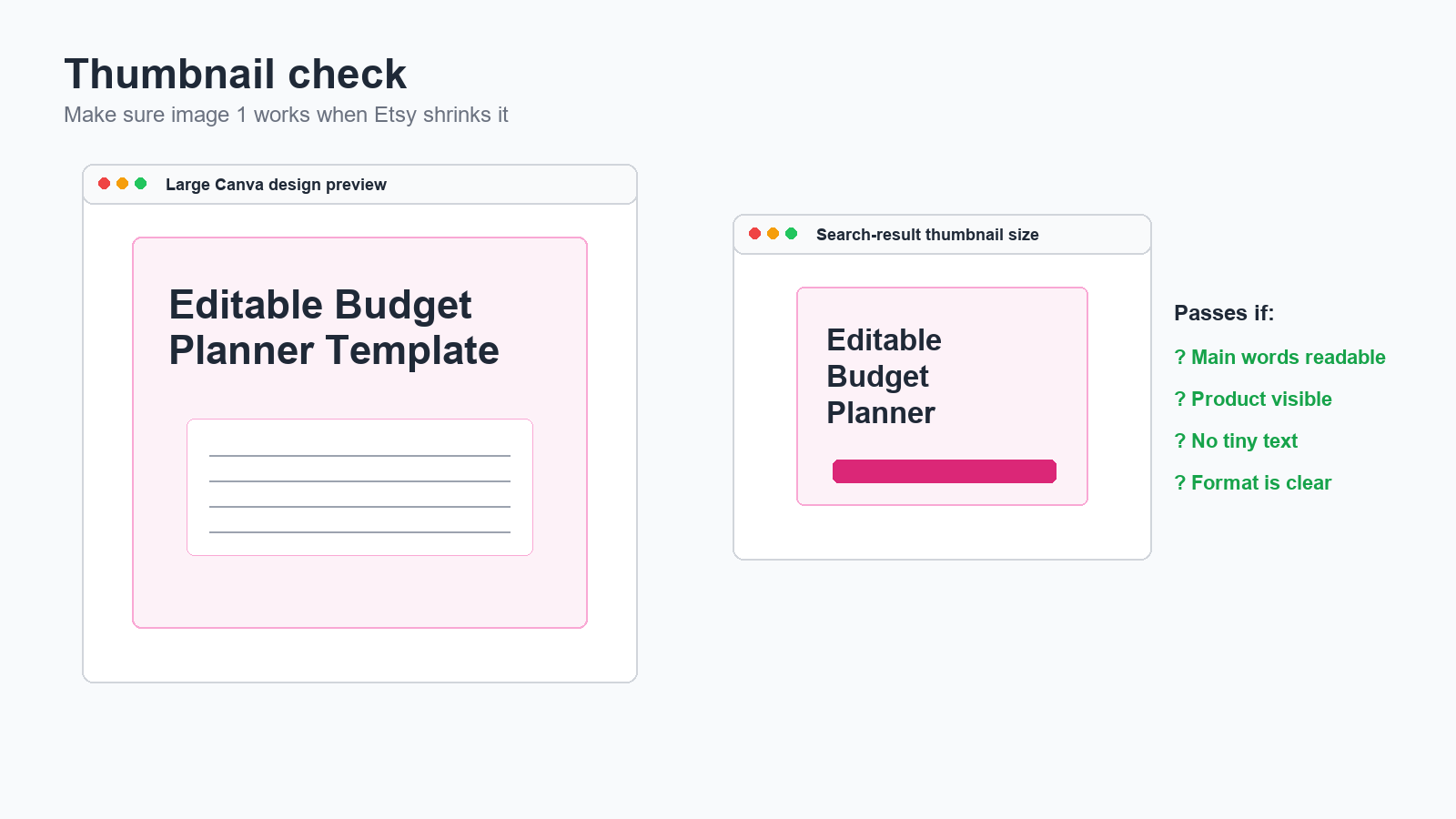
Use one readable font for the headline and one lighter font for the supporting text. Keep the contrast high. If you need to test whether the card works, shrink it until it is thumbnail size on screen. If the headline is still legible, you are on the right track. If not, simplify. This is the first place where a lot of seller images fail: they are visually pretty at full size but unreadable in the search grid.
Build Images Two And Three: What Is Included
Once image one is clear, use image two to show what the buyer gets. This is the place for page counts, file types, included sections, or bundle contents. If your product is a template pack, show the number of templates or examples of the formats. If your product is a spreadsheet, show the tabs. If your product is a prompt pack, show the prompt categories. Buyers are much more likely to trust a listing when the contents are visible instead of implied.
Image three should show proof. In a digital product listing, proof usually means a page preview, a screen mockup, or a close-up of the file layout. This is where screenshot-style visuals help more than lifestyle graphics. A buyer wants to see the actual structure. They want to know if the planner has enough writing space, whether the template is clean, or whether the spreadsheet is set up logically. A realistic file preview answers those questions faster than a decorative scene ever could.
When you write the overlay text, be concrete. Use phrases like “7 editable pages,” “PDF plus Canva link,” “Google Sheets with formulas,” or “Includes instruction page.” Those phrases are not hype. They are the practical information that reduces refund risk and confusion later. If a buyer cannot tell what is inside, the listing images have failed even if the art direction looks polished.
Build Images Four And Five: How It Works And Who It Is For
Image four should explain the process. A new buyer often does not understand how to use a digital product, especially if the item is a template. Show the simple sequence: buy, download, open, edit, and use. If the file is an editable Canva link, make that path visible. If it is a printable PDF, show the download and print path. If it is a spreadsheet, show the open-and-copy step. The goal is to remove the little question marks that stop a sale.
Image five should speak directly to the right buyer. This is the card where you narrow the audience instead of broadening it. For example, “Made for beginners who want a simple budget system,” or “Best for Etsy sellers who need fast product mockups,” or “Designed for template creators who need cleaner listing photos.” That final card helps the buyer self-select. It also protects you from vague traffic that clicks but never buys because the product is not really for them.
Think of the last image as the “why this version” card. You are not just saying what the file is. You are saying why your version is easier to use than a cluttered, generic alternative. That difference can be small. Maybe your version has larger text. Maybe it has fewer pages. Maybe it uses plain English. Maybe it includes a printable and editable version together. In digital product land, small usability improvements are often the reason a buyer chooses one listing over another.
Make The Visuals Feel Like Real Work Screens
The user asked for screenshot-style tutorial visuals, and that is the right standard. Do not make the set look like abstract AI cards. Realistic teaching visuals should resemble browser windows, file folders, export checklists, listing draft screens, and product boards. Even when you use mockups, the mockup should still look like a work screen. A buyer should be able to imagine themselves using the file, not just looking at a marketing poster.
That means using contained panels, visible borders, and honest spacing. Put the mockup in a frame. Add a small checklist. Show labels that look like the kinds of notes a real seller would make. A useful tutorial image has enough texture to feel practical but not so much clutter that the information disappears. If you have to choose between decorative mood and screen clarity, choose screen clarity.
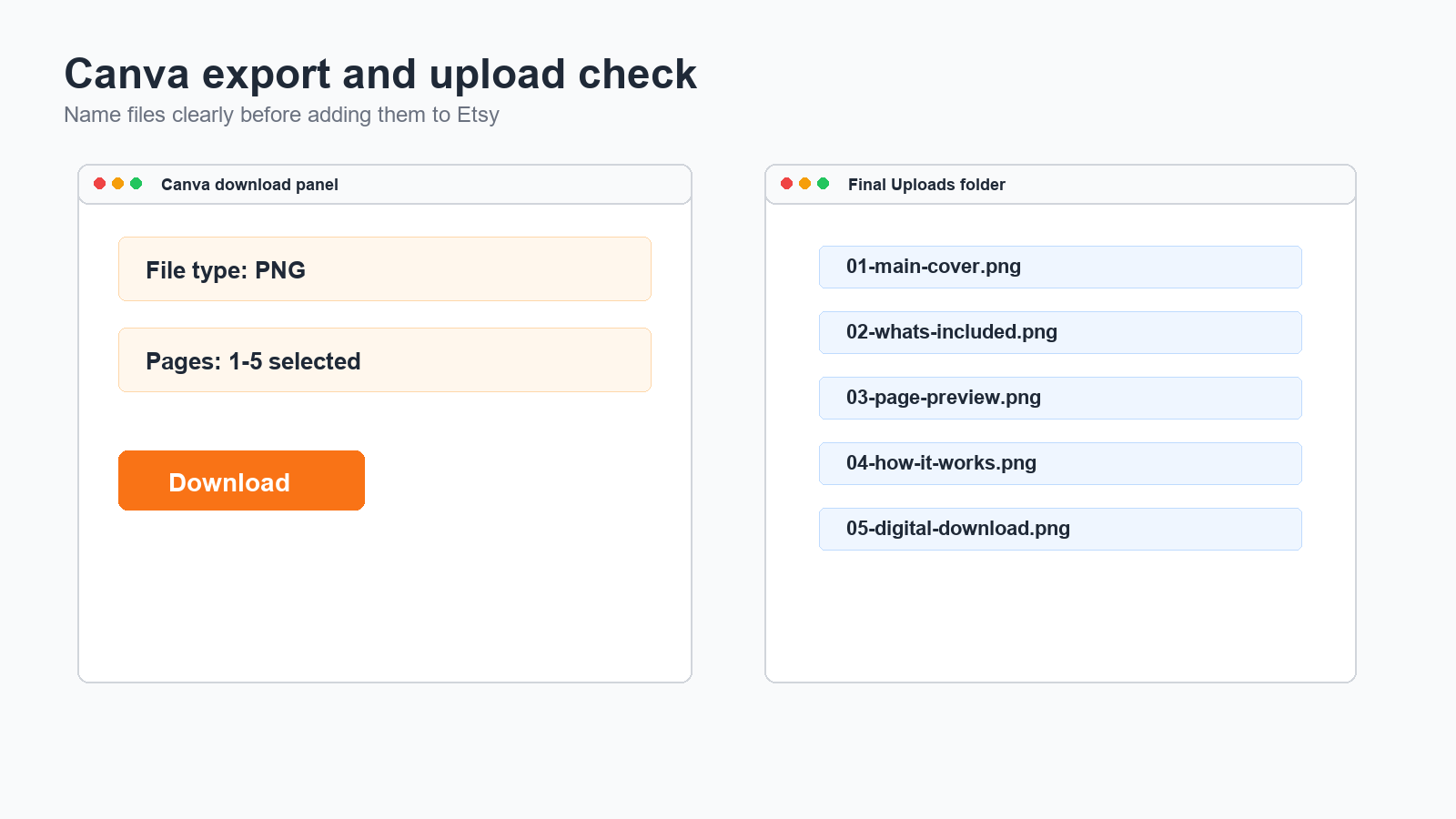
One practical trick is to design around workflow pieces. For example, an image can show: “Open Canva design, duplicate page, change title, export PNG.” Another can show: “Rename files, upload to Etsy, check the thumbnail crop.” These tiny action labels make the visual feel like a tutorial instead of an ad. They also reinforce the main lesson of the article: the image set is part of the product education.
Check Thumbnail Size, Mobile Crop, And Readability
After the design looks good on your desktop, test it as if you were a buyer on a phone. Etsy listings are often discovered in the grid first, not on the full product page. That means the thumbnail matters. Shrink each card and check whether the top headline still reads. If a buyer cannot read the first image at small size, the card is too busy or the typography is too thin. Fix that before you publish.
Also check the crop. Some words disappear when Etsy crops the image for different display spots. Do not put essential text at the far edges. Keep important words in the middle safe zone. If you use a screenshot, make sure the key area is visible even when the image is trimmed. This is one reason real work-screen visuals are better than ornate mockups: they give you a clearer center of gravity.
Canva’s Etsy size guidance is a useful reminder here. You want enough resolution that the image remains sharp when uploaded, but you also want the layout simple enough to survive compression. A buyer should never need to zoom in to understand the headline. If they do, the image is too information-heavy for Etsy search behavior. Simplify the message and repeat it in a cleaner form.
Turn One Image Set Into A Reusable Template System
Do not build these images as one-off art files. Build them as a system. Save the structure, the font pair, the color palette, the spacing rules, and the image order. Then swap in the product-specific text and screenshots for the next listing. That is how you move from making one decent listing to making ten consistent listings without starting from scratch every time.
A reusable system is especially useful for digital product sellers because the same visual logic applies across different offers. A Canva template pack still needs a promise card, a contents card, a preview card, a how-it-works card, and a buyer-fit card. A spreadsheet template needs the same sequence. So does an Etsy SEO checklist. So does an AI prompt pack. Once you own the structure, you can change the subject without changing the workflow.
This is also where automation helps. Use ChatGPT to draft overlay copy, generate alternative headlines, or rewrite long product labels into plain English. Then review the output yourself. The point is not to let the AI invent the listing. The point is to speed up the boring part so you can spend more time making the product look clear and trustworthy. That is the real productivity gain for beginners.
Use Listing Images To Support SEO, Not Replace It
Listing images are not a substitute for good titles, tags, categories, or attributes. Etsy still needs the listing metadata to understand what you are selling. But the image set helps convert the traffic that the SEO brings in. That means the images should visually match the buyer words in the title and tags. If the title says editable Canva template, the first image should say editable Canva template. If the listing says printable PDF, the images should not make it look like a software subscription.
This is also where current Etsy tag guidance fits in. Etsy says tags help shoppers find relevant listings, and the platform mixes title, tags, category, and attributes to match search intent. Your job is to make sure the image set does not contradict that search intent. If the metadata says one thing and the images imply another, buyers hesitate. If both point to the same promise, the listing feels cleaner and more professional.
So think of the image set as the last translation layer. SEO gets the shopper to the listing. The images answer the final questions. The description supports both. A lot of beginners focus on one of these layers and neglect the others. That usually leads to clicks without sales. Better results come from a tight match between the search term, the title, the image promise, and the actual file. That is what a good Etsy listing does.
When You Should Stop Refining And Publish
Beginners often keep polishing long after the listing is useful. Stop when the five-image sequence is clear, the thumbnail is readable, the file type is obvious, and the buyer can understand the product without extra explanation. If you can say the product in one sentence and the images support that sentence, the set is ready. The rest is iteration after data, not endless pre-launch perfection.
Publish the first version, watch the behavior, and adjust one thing at a time. Maybe the first image needs a larger headline. Maybe the contents card needs more white space. Maybe the proof card should show a tighter crop. Those are good fixes. But do not change the system every day. A clean, consistent process will teach you more than a constantly rewritten one.
That is the practical value of this tutorial. When you can make one strong listing image set in Canva, you can repeat the process for every future digital product. You are not just making pictures. You are building a conversion system. That system is what helps a tiny beginner shop look organized, trustworthy, and worth clicking.
Visual Walkthrough
Realistic screenshot-style examples
Beginner Checklist
- Write the one-sentence product promise before opening Canva.
- Map a five-image sequence with one job per card.
- Use a square canvas and keep the headline readable at thumbnail size.
- Show what is included, how it works, and who it is for.
- Use screenshot-style previews for the actual file or page layout.
- Export clean PNGs and test the crop on a phone-sized screen.
- Match the images to the title, tags, and product file type.
- Save the design as a reusable template for the next listing.
Copy-Paste ChatGPT Prompt
Use this prompt to draft the image copy and quality-check the sequence for one product.
You are my Etsy listing image assistant. I am creating a digital product listing in Canva.

Product:
[paste the product name and type]

Buyer:
[paste the exact buyer]

Goals:
1. Write five Etsy listing image headlines, one for each image.
2. Suggest one short supporting line for each image.
3. Tell me what the visual should show on each card.
4. Rewrite anything vague into plain, buyer-friendly language.
5. Check whether the five images explain what the buyer gets, how it works, and why it is useful.

Rules:
- Do not make it sound like a generic ad.
- Do not use fake income claims.
- Keep the first image readable at thumbnail size.
- Make the file type and buyer benefit obvious.
- Prefer screenshot-style visuals and real product previews.
- Return the five-image plan in a simple table.Current Sources Checked
These are the public guidance and demand-signal links that informed this tutorial.
- Etsy Help: How to Edit Your Listing Photos
- Etsy Help: How to Manage Your Digital Listings
- Etsy Help: How to Use Tags to Get Found in Search
- Etsy Help: Listing image requirements and best practices
- Canva: Etsy size guide
- Canva: Create Etsy designs
- Recent public seller discussion: listing photos must explain editable vs printable
- Recent public seller discussion: Canva templates and Pinterest traffic
Continue Learning On IdeaVaultHQ
Use these links to keep building the same tutorial path instead of stopping at one article.
Continue Learning On IdeaVaultHQ
This guide is part of the IdeaVaultHQ Template School path. Use the links below to keep moving instead of stopping on one article.
Success Diagram For This Idea
This is the practical path from reading How To Make Etsy Listing Images in Canva for Digital Products to turning the idea into a small testable offer.
Leave a Reply